Posts

Showing posts with the label configuration

How liferay is identifying the database configuration

In liferay we configure the database configuration properties in the portal-ext.properties. So when we restart the server or during server startup , we can see the log as  Determine dialect for MYSQL5 or if it is orcale  Determine dialect for oracle 11g . so how liferay is identifying? In Liferay have a look in to the  DialectDetector class and the method  getDialect(DataSource dataSource) . Look into the following code in the method. Connection connection = dataSource.getConnection(); DatabaseMetaData databaseMetaData = connection.getMetaData(); String dbName = databaseMetaData.getDatabaseProductName(); int dbMajorVersion = databaseMetaData.getDatabaseMajorVersion(); dialectKey = dbName.concat(StringPool.COLON).concat( String.valueOf(dbMajorVersion)); dialect = _dialects.get(dialectKey); if (_log.isInfoEnabled()) { _log.info("Determine dialect for " + dbName + " " + dbMajorVersion); } else if (dbName.startsWith("Oracle") &...

Generating the thread dumps

Image
Liferay has feature to generate thread dumps if request takes more than 5 minutes. So that we can anayalze which thread it taking more time. Search and look into these following properties in the portal.propeties.      #     # The thread dump filter will automatically log thread dumps when the portal     # is too slow. Behavior can be configured via the property     # "thread.dump.speed.threshold".     #     com.liferay.portal.servlet.filters.threaddump.ThreadDumpFilter=true     #     # The thread dump filter will log a thread dump if the portal takes longer     # than the specified number of seconds to process. The thread dump filter     # must be enabled via the property     # "com.liferay.portal.servlet.filters.threaddump.ThreadDumpFilter".     #     thread.dump.speed.threshold=5 Also we have another option to generate the thre...

How to change the authentication type for login portlet in liferay

Image
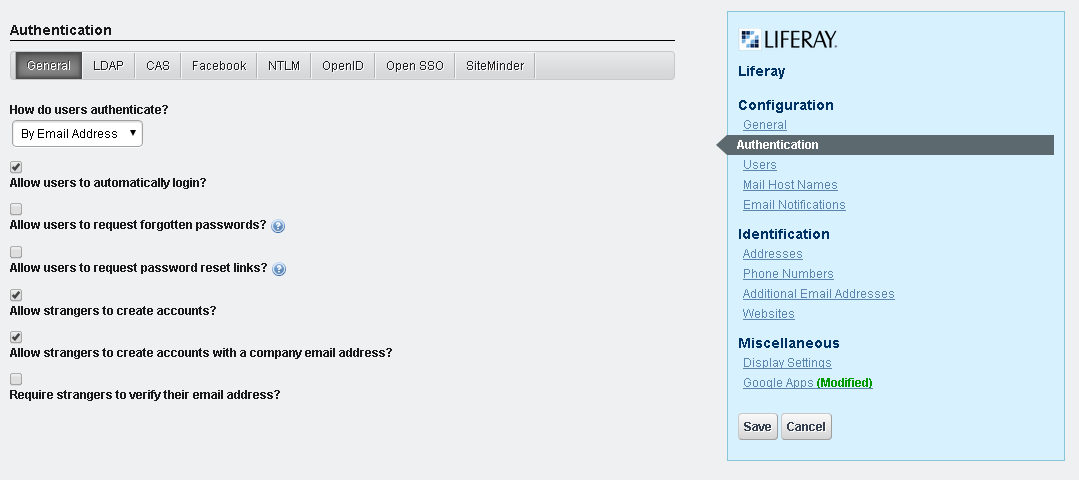
We have 3 options to change the authentication type for login. 1. Go to the controlPanel , navigate to the portal section and click on the portal setting and click on the Authentication right handside as shown in below screen shot.  select the values from the selectbox of " How do users authenticate? " ans click on the save button to save the changes. 2.We can change the properties in the portal-ext.properties as, here i have changed to authenticate by screen name.     #     # The portal can authenticate users based on their email address, screen     # name, or user id.     #     #company.security.auth.type=emailAddress     company.security.auth.type=screenName     #company.security.auth.type=userId 3. Changing the settings of login portlet. Go to page where login portlet is reside and click on the setting icon as shown below. and click on the " configuration " which will nav...

Setting edit mode - Perference

Image
We can enable edit mode for a portlet by setting the init param in portlet.xml <init-param>      <name>edit-template</name>      <value>/html/jsp/edit.jsp</value> </init-param> Create edit.jsp(name can be anything)  . Then you can see the following image in the setting. When we click on the preference by default the following method executes. public void doEdit( RenderRequest renderRequest, RenderResponse renderResponse) throws IOException, PortletException { ---------------- ------------------- }
